
My Feed gives your organisation a simple, powerful way to share updates, announcements, content, and important messages directly with patients through your branded mobile app and web portal. Team Members create Posts in the Staff Portal, and patients see them instantly in their My Feed.
What Is My Feed? 📣
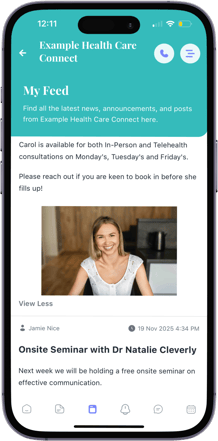
My Feed is your organisation’s in-app and online channel for sharing updates and announcements with patients. Patients receive only Posts that are relevant to the groups and programs they belong to.
Where Patients See My Feed
📱 In the Mobile App
-
My Feed is visible in the footer menu.
-
It is the third icon from the left.
-
Tapping My Feed opens the patient’s personalised feed of Posts.
- Patients can then scroll up and down their feed to view new and older Posts.
🖥️ In the Patient Web Portal
-
My Feed appears in the left-hand navigation menu, alongside other patient features.
-
Patients can click My Feed at any time to view all relevant updates.
-
A notifications bell is displayed in the top header bar, allowing patients to check their notifications regardless of which page they are on.
This ensures patients can access My Feed and manage notifications consistently across both the mobile and web experiences.
Where Do Team Members Create Posts? 💻
All Posts are created and managed in the Staff Portal.
In the left-hand menu, you’ll see a Posts tab where your team can:
-
Create Posts
-
Add images or URLs
-
Choose who receives the Post
-
Review all published Posts in the Posts table
Creating a Post ✏️
When creating a Post, Team Members can:
-
Add a Subject – Appears as the Post title and in notifications.
-
Write the Body – Share updates, reminders, encouragement, or important information.
-
Attach Images or URLs – Useful for flyers, links, programs, resources, or surveys.
-
Select the Audience:
-
📍 All patients
-
📍 Specific Patient Groups
-
📍 Specific Group Programs
-
Once published, Posts appear instantly in the patient’s My Feed.
How Patients Receive Posts 📱💬
When you publish a Post, patients receive:
-
A push notification (mobile app)
-
An email notification
-
A notification inside the app and web portal
All notifications display the Subject of the Post.
Managing Notification Settings ⚙️
Patients
-
In the mobile app, patients can tap Notifications (next to My Feed in the footer) to adjust their preferences.
-
In the web portal, patients can click the notifications bell in the top header bar and adjust settings.
Team Members
You can update a patient’s settings on their behalf:
Staff Portal → Patient Profile → Manage Notification Settings
Common Use Cases (with Examples) 🌟
My Feed supports a wide range of communication needs across different healthcare settings.
Employee Assistance Programs (EAPs)
-
🧠 “5 ways to handle work stress this week”
-
👩⚕️ “Meet Sarah, our new psychologist available for video sessions”
-
📅 “Upcoming resilience workshop – registrations now open”
-
🌱 “A reminder to take a mindful moment today”
Treatment & Recovery Centres
-
👥 “Tonight’s NA support group begins at 6pm”
-
🎉 “Celebrating all clients reaching sobriety milestones this week”
-
📢 “Yoga moved to 4pm today due to weather”
-
📚 “New grounding technique videos are now available”
Hospital Inpatient & Outpatient Services
-
🏥 “Please arrive 10 minutes early for tomorrow’s clinic”
-
🧘 “Updated physiotherapy exercises available in your app”
-
👨⚕️ “Welcome Dr Lee, our new consultant joining the team”
-
💬 “What to expect during your upcoming procedure”
Why My Feed Helps 💡
My Feed centralises communication and ensures patients receive timely, personalised updates—whether they’re using the mobile app or web portal. It reduces manual admin, improves engagement, supports appointment attendance, and helps clinicians and organisations stay connected to patients between sessions.